Entering an event
Choose a rider, horse and classes, add options, and build your entry.
Found an event you'd like to enter? Here's how to build and submit your entry.
Find your event
- From the homepage, browse or filter events by keyword, country, region, discipline or sport. You can switch between card, list and calendar views.
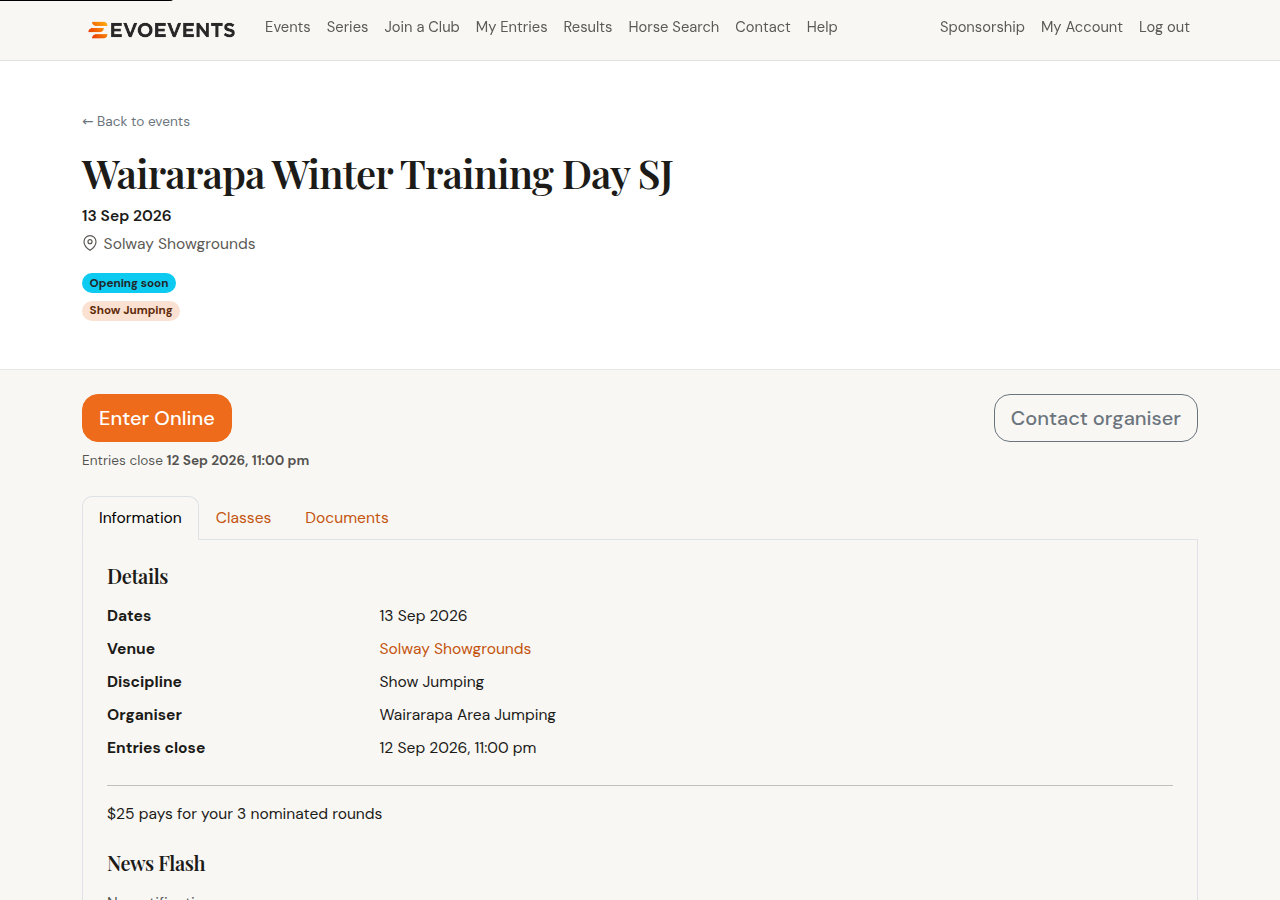
- Select an event to open its details — schedule, classes, timetables and conditions of entry.
- Select Enter Online. The button says Join for club and membership events, Add Entry if you already have entries for this event, and shows (late) once the closing date has passed.
The entry form, step by step
Entering is a step-by-step form — the steps you see depend on what the event offers.
1. Disclosure statement
Read the conditions of entry and tick both boxes: that you accept the disclosure statement, and that you have permission to accept it for everyone you're entering. Both are required every time, even if you're only entering yourself — you can't build an entry until they're ticked.
2. Your entries
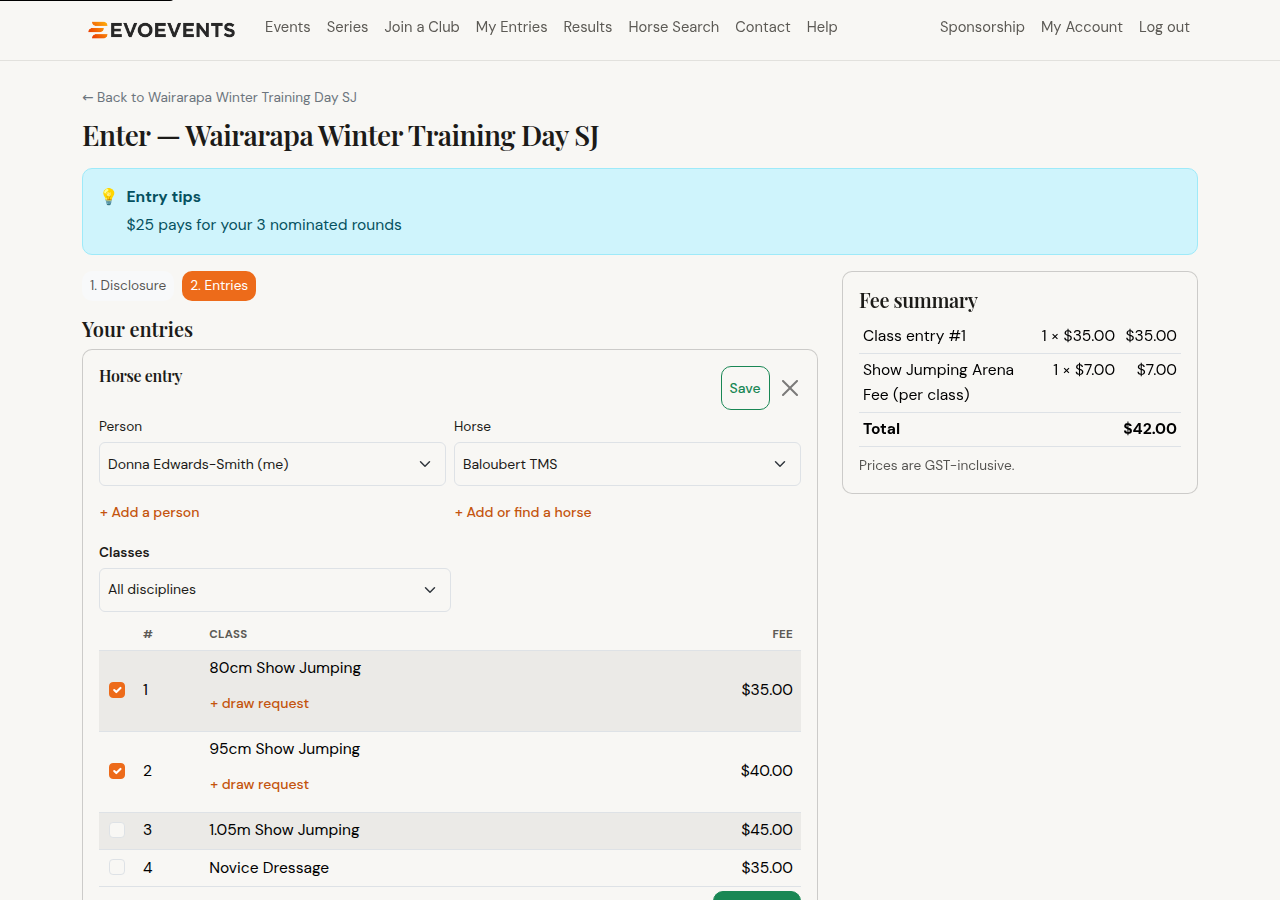
- Choose the person — yourself, or someone you enter on behalf of.
- Choose the horse or animal for that person.
- Tick the classes they'll contest. On a big schedule, use the discipline filter above the list to shorten it.
- Select + Add entry (it reads + Add another entry once you have one) for another horse or person, or + Add person-only classes for classes with no animal.
Some classes have extra options:
- Hors Concours (HC) — tick if you're competing out of competition (only where the class allows it).
- Test of Choice — for dressage classes that require it, pick your test from the list.
- Draw request — a free-text note if you'd like a particular draw position.
3. Yarding & camping
If the event offers yarding or camping you'll get a step for it.
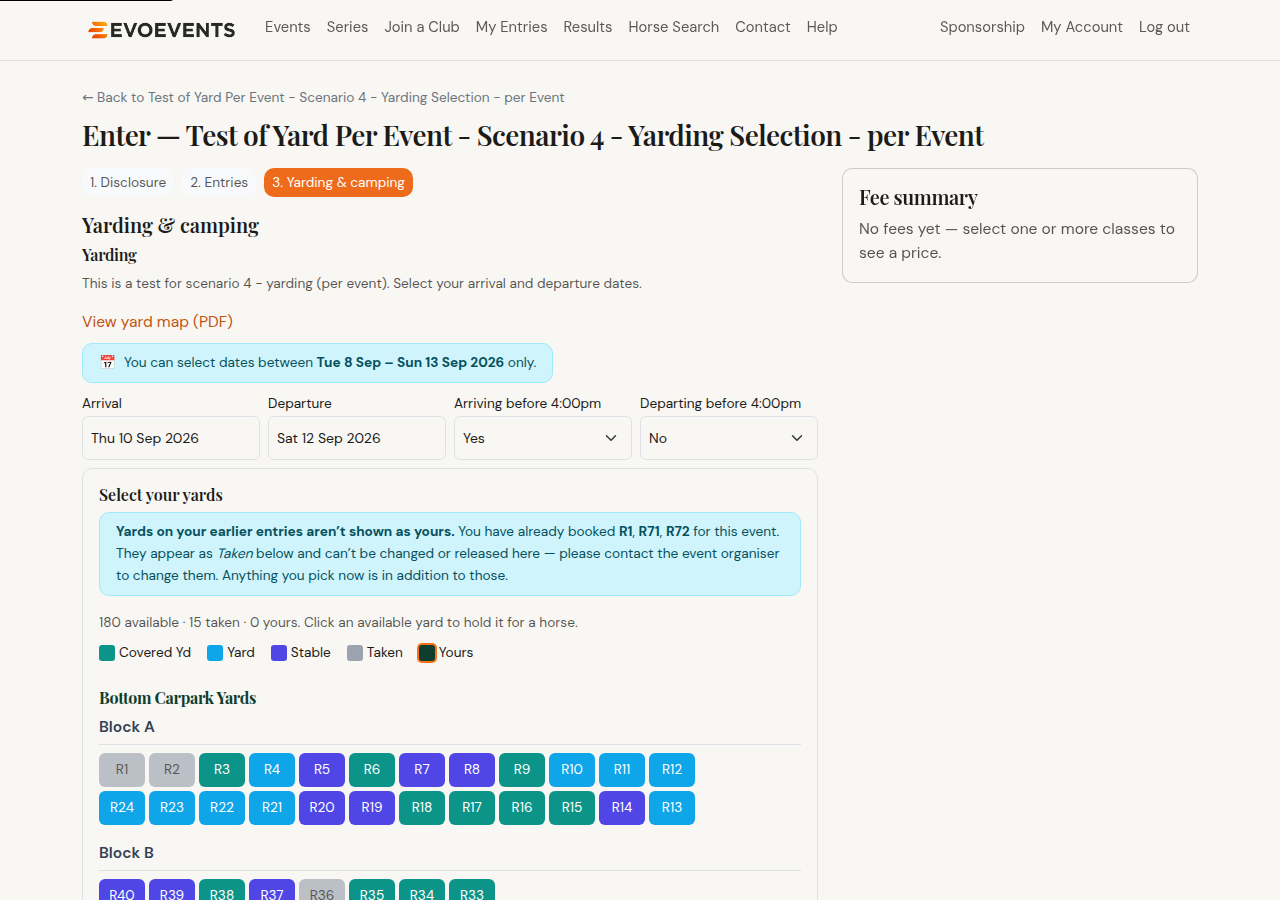
Some events ask for your arrival and departure dates and the changeover answers (for example "Arriving before 4:00pm") — always where the fee is charged per day, since that's what it's priced on, and wherever else the organiser wants to know when you're coming. Where you're asked, they're required as soon as you take a yard or camp site, including a free one, and the entry can't go in your cart without them.
Plenty of events charge a flat fee for the whole event and don't need dates at all — there you won't see those fields for yarding or camping, since it's one setting for the event. Where both are asked, your camping dates are filled in from your yarding dates as a starting point; change them if they differ, and your version is kept.
There's also a Yarding requests box for anything the organiser should know — being yarded next to a friend, for instance.
How the days are counted
Where the fee is per day, this is the part that surprises people — one night can be charged as one, two or three days. Start with the nights between your arrival and departure, then add a day if you arrive before the changeover time (you've had the yard for most of that day), and add another if you leave after it (you've held it past the point the next person could move in). Every booking is at least one day.
So for an event with a 4:00pm changeover, arriving Saturday and leaving Sunday comes to:
- arrive after 4:00pm, leave before 4:00pm — 1 day
- arrive before 4:00pm, leave before 4:00pm — 2 days
- arrive before 4:00pm, leave after 4:00pm — 3 days
The same explanation sits in the entry form itself, under How the yard days are counted, using that event's own changeover times. Events that haven't set one use 4:00pm. Where the fee is a flat one for the whole event, the changeover answers are still asked — they tell the organiser when to expect you — but they don't change what you pay.
Choosing your yard on the map
Some events let you pick your own yard. The map sits in the same step. Where the event asks for dates, the map stays greyed out until yours are in; where it doesn't, you can pick straight away. Then:
- Select an available yard on the map.
- Choose which horse it's for. The list includes horses belonging to riders you enter for, so a parent can yard the children's horses.
- The yard turns dark with a tick to show it's yours. Select it again to release it.
Yards are held while you finish your entry and confirmed when you pay. If you leave the entry for a long time the hold is released so someone else can take the yard, and clearing your cart releases your yards too. Yards from an earlier entry you've already paid for show as Taken and can't be changed here — contact the organiser.
Choosing your camp site on the map
Events with a camping ground have a second map, under Camping, and it works exactly the same way — it unlocks on your camping dates, and the sites are usually grouped by powered and non-powered. The one difference is what you're asked when you pick one: a yard is for a horse, so a camp site is for a person — you, or someone you enter for.
4. Optional fees
Add anything else the event offers — arena fees, catering, tickets, memberships and so on. The Fee summary beside the form updates as you go, so there are no surprises at checkout.
5. Add to cart
Select Add to cart and you'll go straight to that event's checkout to pay — see Paying for your entry. Each event is paid for separately, so an entry for another event stays in its own cart.
If something's missing, the message under the button tells you exactly what — which section, and which field.
Team entries
Events that accept teams show an Enter a team button on the event page. See Team entries for the full process.
Late entries
After the closing date most events keep accepting entries right up until the event finishes, with a late fee. You'll be shown the amount and asked to tick that you accept it before you can check out. If a class has closed since you added it, we'll tell you so you can adjust your cart.
Still stuck? Contact us and we'll help.