Your profile, horses & animals
Complete your profile and memberships, and add the horses and animals you compete.
Everything about you and your animals lives under My Account. Keeping it up to date means faster, smoother entries.
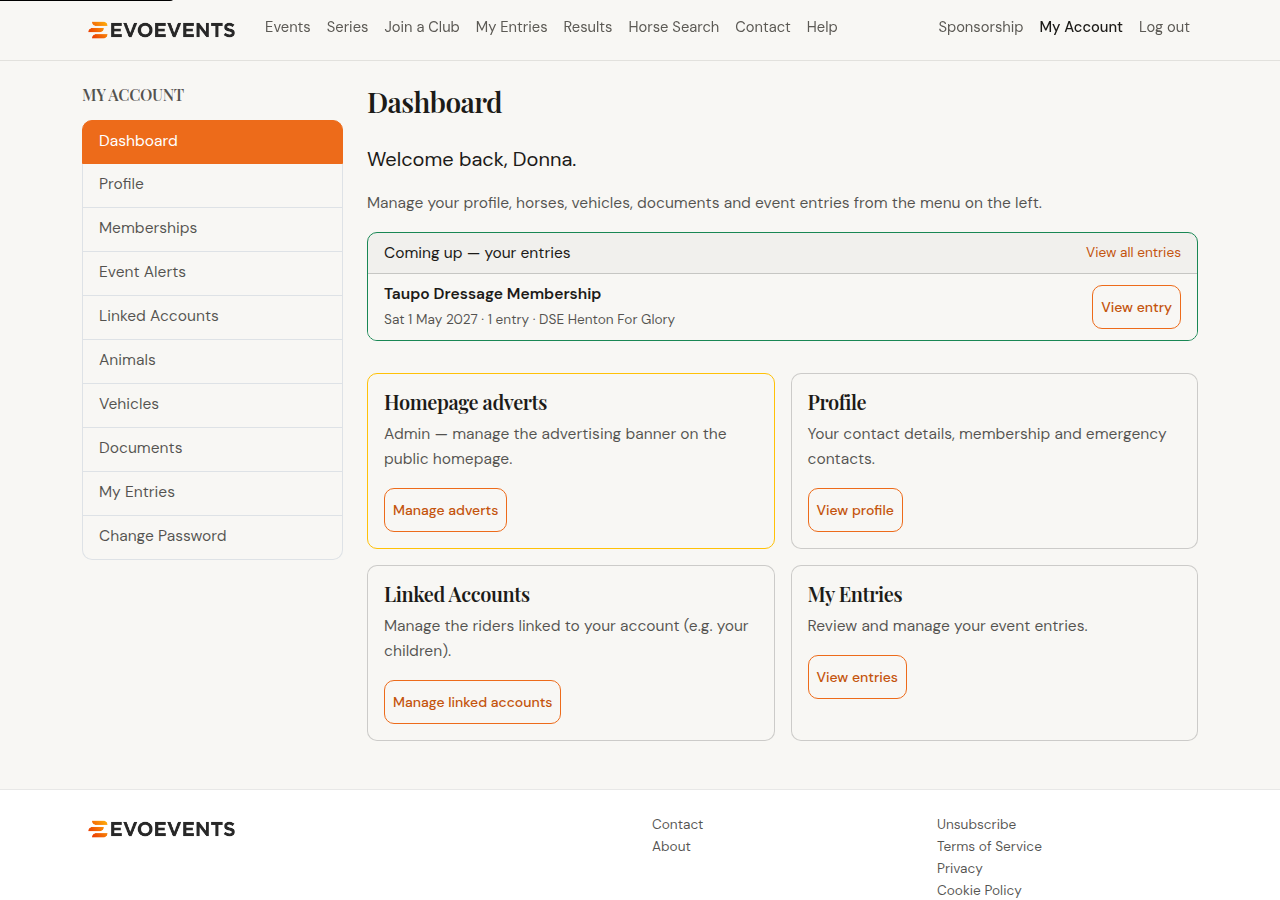
Your profile
- Go to My Account › Profile.
- Check your contact details, address, next of kin and — if you compete — your publicity and tax details.
- Set whether you'd like your results sent to you by text or email.
- Save your changes.
Your name, email address and date of birth are shown but can't be edited here, because they identify your account. See Your account settings for how to change them.
Memberships
Under My Account › Memberships you can record your ESNZ, FEI, Pony Club and school details. Some events check these for eligibility, so keeping them current avoids problems at entry time. Once an ESNZ or FEI number is saved, that number and its registration details are locked — contact EvoEvents if one needs correcting.
Bank details
Your bank account is used for refunds and prize money, and is stored encrypted. On the Profile page enter your account name and number, then select Save & confirm these details. You can re-confirm any time — each confirmation is date-stamped so organisers know the details are current.
Adding a horse
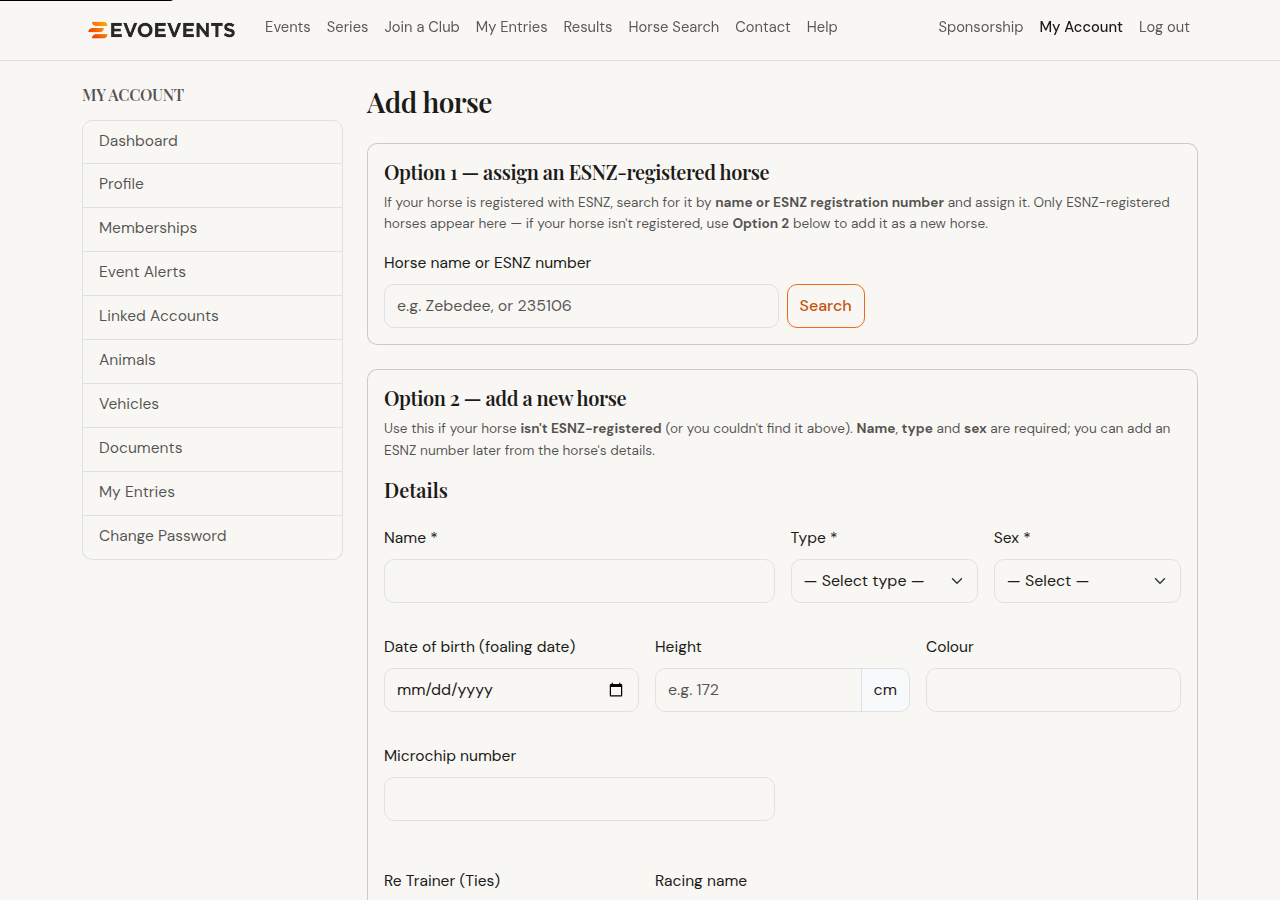
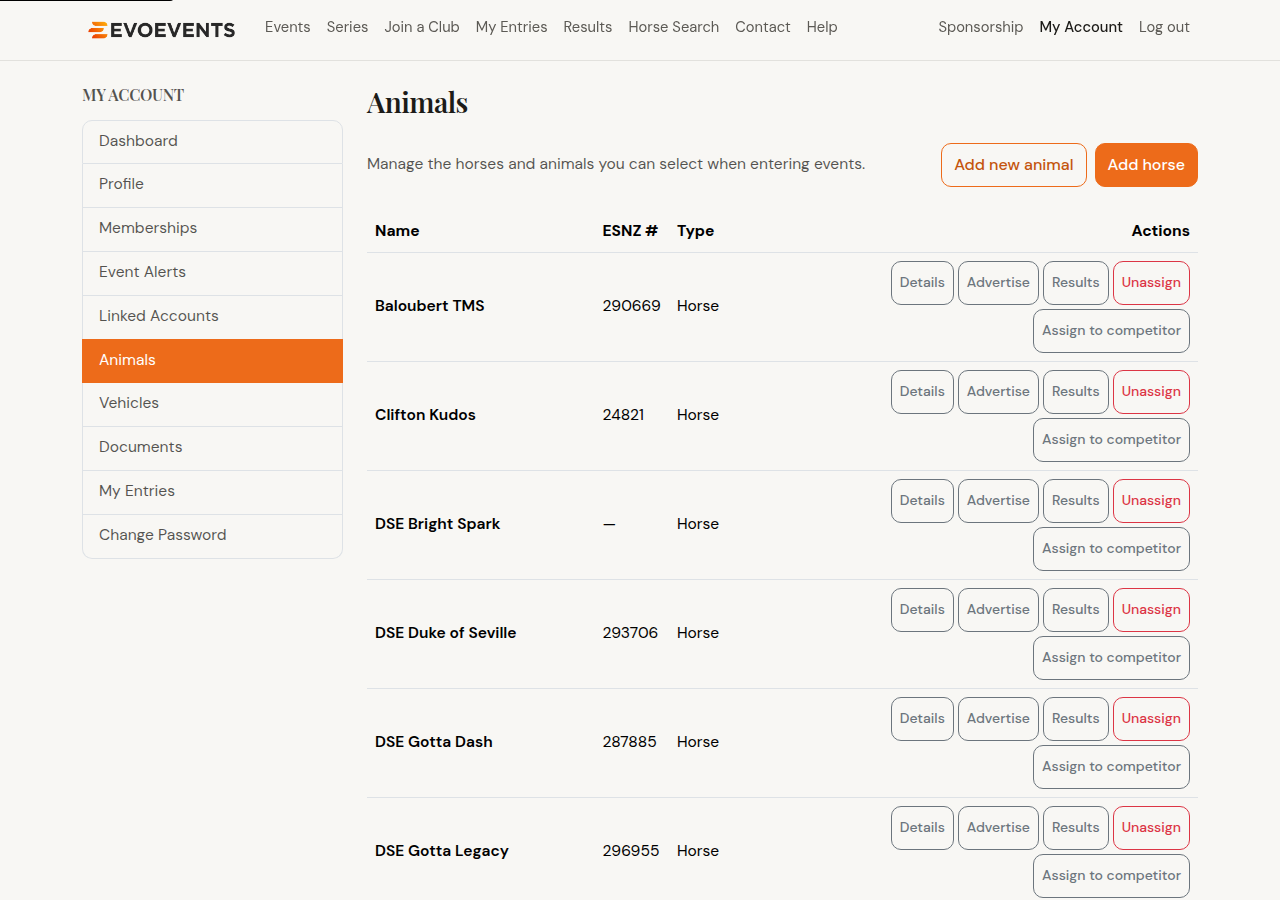
Go to My Account › Animals and select Add horse. There are two ways to add one, and it matters which you use:
- If your horse is ESNZ-registered — search for it by name or ESNZ number under Option 1, then select Assign. This links you to the existing registered horse, so its record and results stay in one place.
- If it isn't registered — use Option 2 and fill in the form: name, type (horse or pony) and sex are all that's needed to start. You can add the rest afterwards.
Animals other than horses
A&P shows and similar events take all sorts of exhibits. On My Account › Animals select Add new animal, choose the type of animal, and fill in the fields that type asks for. It's then available to enter just like a horse.
Horse details, breed societies and PIC
Select Details beside any animal to open its full record — registration and height certificate, breeding, and notes for the commentator.
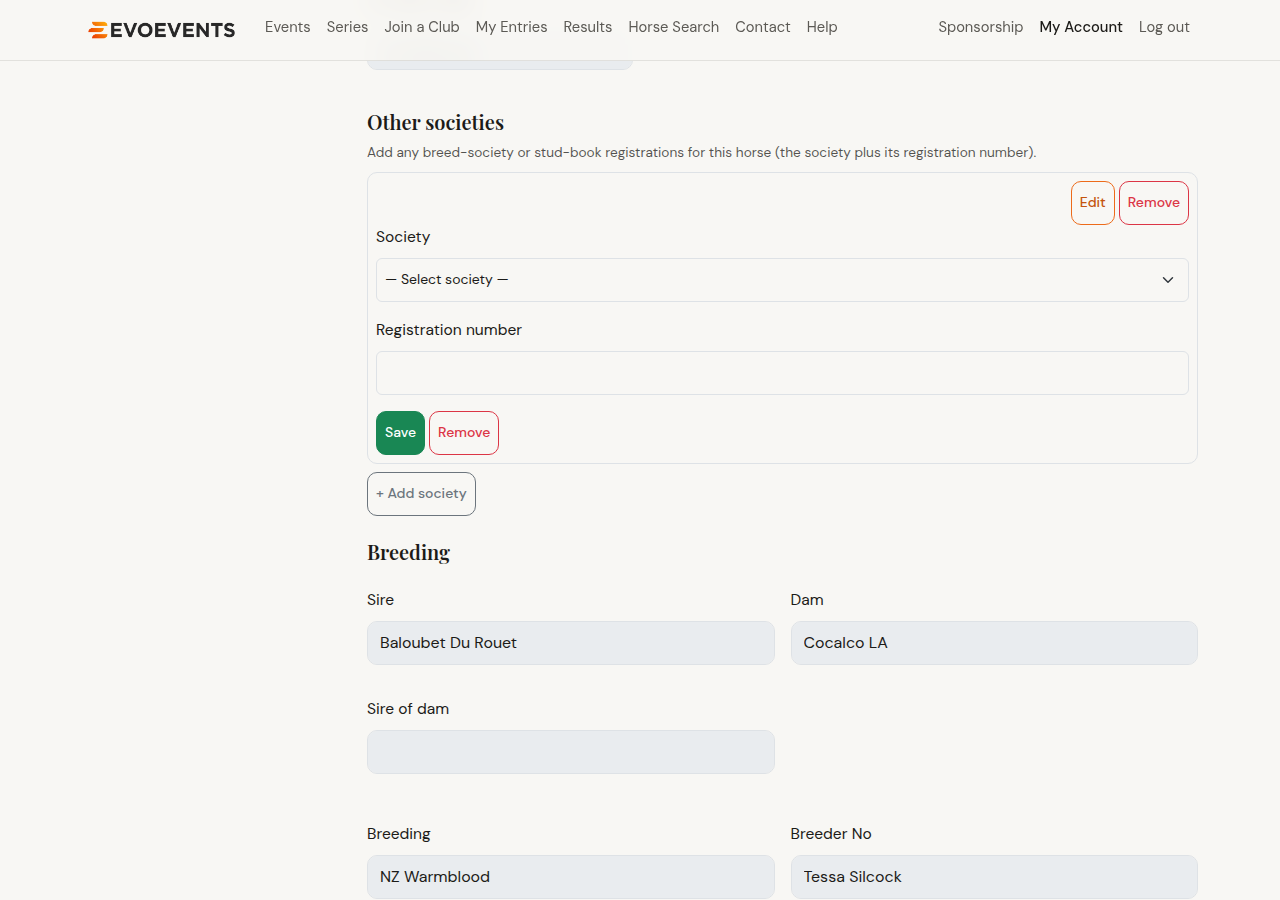
Under Other societies you can record any breed-society or stud-book registration: select + Add society, choose the society and type in the registration number. The same section holds the Aus. Property Identification Code (PIC) — choose it from the society list and enter your code. A PIC is stored per animal, so add it to each one that needs it.
More you can do with an animal
- Documents and freestyle music — papers, height certificates and MFS tracks. See Documents & music.
- Results — every published result for that animal.
- Advertise — list the horse for sale.
- Assign to — let one of your linked riders enter that horse.
Still stuck? Contact us and we'll help.