Team entries
Enter a whole team as its manager — organisation details, riders, horses, classes and roles.
If you manage a team, you enter the whole team in one go and pay for it together.
Before you start
- Your own contact details should be up to date, including a phone number — organisers use them to reach you on the day.
- Have your team list to hand: each rider and the horse they'll compete.
Entering a team
- Open the event and select Enter a team. (It only shows on events that accept team entries.)
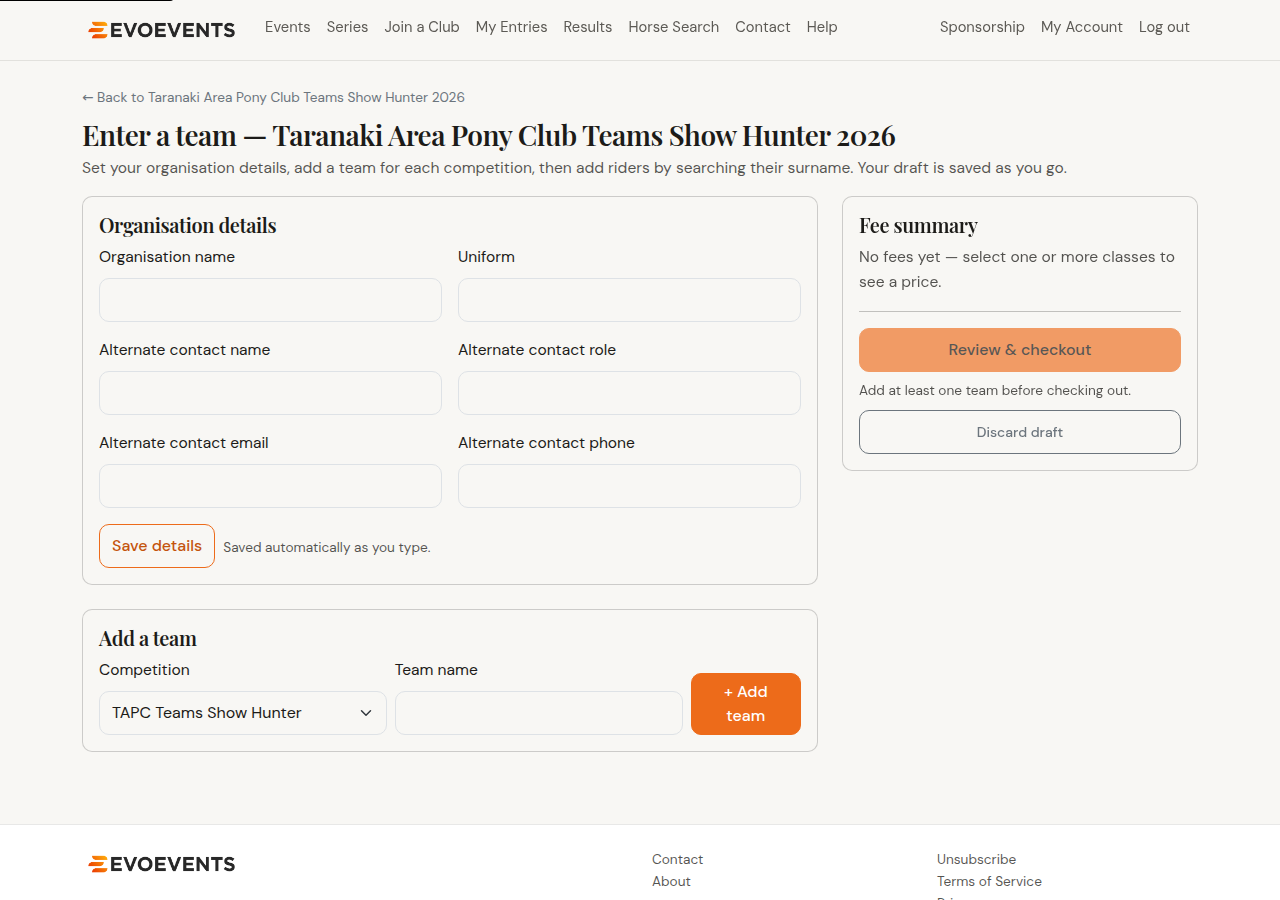
- Fill in the Organisation details — the organisation name, uniform, and an alternate contact with their role, email and phone. This is saved automatically as you type.
- Select Add a team, give it a name, and choose which competition it's entering. Add as many teams as you need.
- For each team, add your riders: search by surname (or full name), pick the rider, and choose the horse they're riding. If the horse isn't listed you can add it here.
- Tick the classes for each rider, and pick a dressage test where the class needs one.
- Assign each rider's role — team captain, reserve and so on — where the competition uses roles.
- When the team is complete, go on to Review & checkout.
Your draft is saved
A team entry doesn't have to be finished in one sitting. Your teams and members are kept as a draft, so you can come back later — handy when you're waiting for a rider to create an account or add their horse. Discard draft clears it and starts again.
Checking out
The review page lists every team, rider, horse and class with a fee summary, then Confirm team entry completes it. Payment works exactly as it does for an individual entry — see Paying for your entry.
Changing a team entry
Once submitted, changes go to the event organiser like any other entry — see Managing your entries. For anything complicated, contact the organiser directly from the event page.
Still stuck? Contact us and we'll help.