Your messages
Every email and text an organiser has sent you, in one place, with new ones marked.
Every email and text an event organiser has sent you, in one place — no need to remember which event it was about.
Finding your messages
Go to My Account › Messages. Everything is listed newest first, with the event it relates to beside each one, and whether it came by email or text.
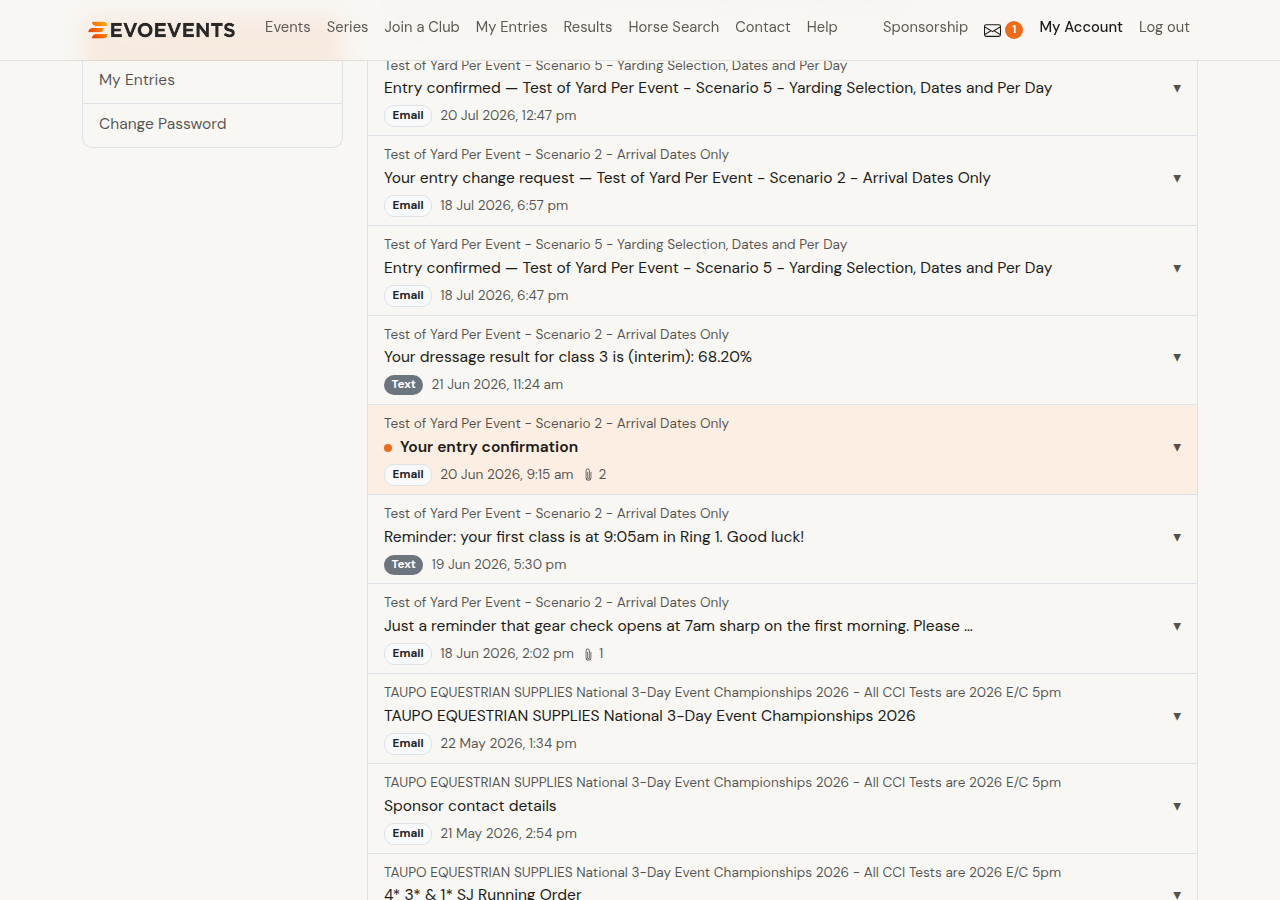
Each message shows the event it's about, the subject, and how it arrived. A paperclip with a number means there are attachments — select the message to read it and download them.
New messages
Unread messages are highlighted with a dot, and an envelope with a count appears in the top menu bar whenever you have any. It keeps itself up to date while you're on the site, so a message that arrives while you're browsing shows up without you reloading. Opening a message marks it as read, and the count goes down.
Mark all as read at the top clears everything in one go, and the Unread filter beside it shows only what you haven't opened — handy when a few new messages are scattered among a long history.
Messages for one event
Each event page also has a My Comms tab showing only that event's messages, which is handy when you're already looking at the event.
Attachments
Where an organiser attached a file, it appears as a button under the message. Some older attachments are held in the organiser's own office system rather than online — those show as a plain label, and you'll need to ask the organiser for a copy.
Still stuck? Contact us and we'll help.