Finding a show
Search by name or venue, filter by sport, region and discipline, and switch between cards, list and calendar.
Every upcoming show is on the home page. There are three ways to narrow it down: search by name or venue, filter by sport, region and discipline, or switch how the list is laid out.
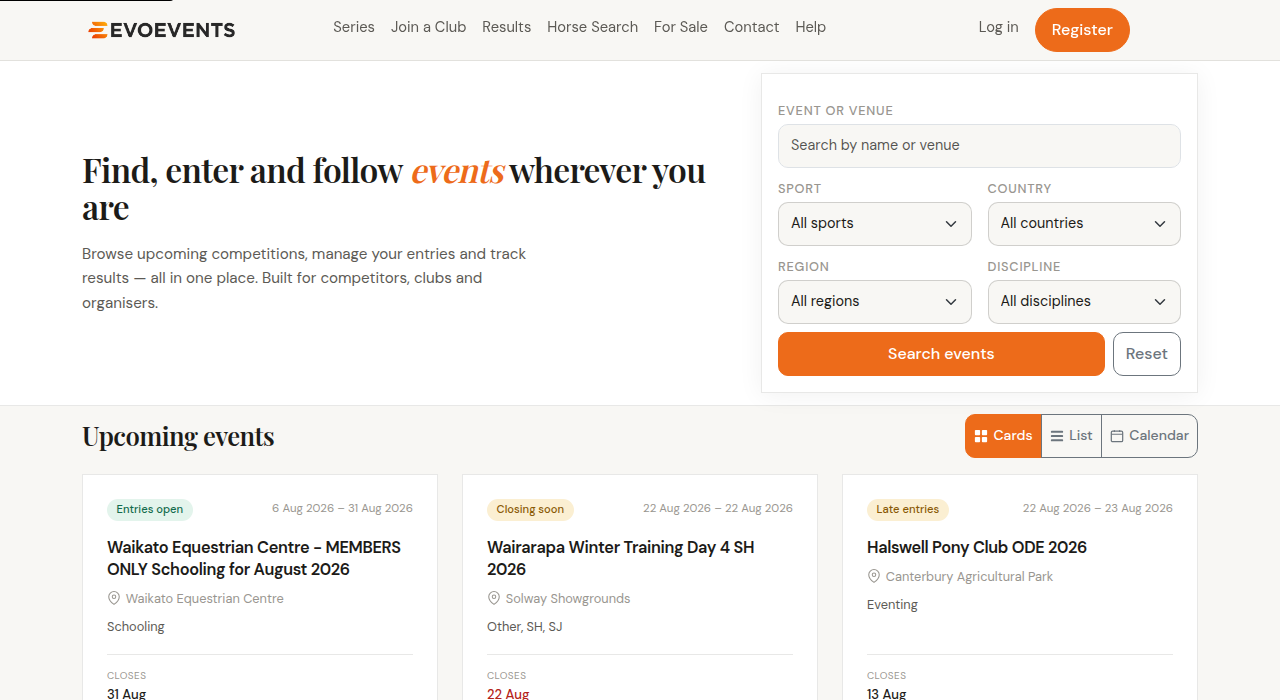
Searching by name or venue
The Event or venue box searches two things: the name of the show and the venue it's held at. So you can type Halswell to find a club's shows, or Solway Showgrounds to find everything on at that venue.
- Part of a word is enough. dress finds Dressage.
- Word order doesn't matter. Typing waikato dressage finds "Dressage Day — Waikato" just as well as "Waikato Dressage". Every word you type has to match somewhere, but they can be in any order and across both the name and the venue.
- Fewer words is usually better. Each extra word narrows things further, so if you get nothing back, take a word away rather than adding one.
The filters
Underneath the search box are four dropdowns. Use as many or as few as you like — they combine.
- Sport — the broad activity, where an event is tagged with one.
- Country — New Zealand or Australia.
- Region — choose a country first and the regions list follows it.
- Discipline — dressage, show jumping, eventing and so on.
Select Search events to apply them, and Reset to clear everything and go back to the full list. If a search comes back empty, Reset is the quickest way to start again — it's easy to leave a filter set from last time and wonder where all the shows went.
Cards, List and Calendar
The three buttons above the events change how the same results are laid out.
- Cards — the default. Best for browsing, and shows the most detail per event.
- List — compact rows. Best when you're scanning a lot of shows quickly, or searching.
- Calendar — a month at a time. Best for planning a season and seeing what clashes.
Reading the listing
Each event shows a coloured badge telling you where entries are up to:
- Entries open — go ahead and enter.
- Closing soon — entries close within the week.
- Late entries — entries have closed but this organiser is still taking them, usually with a late fee.
- Entries closed — no longer accepting entries.
Select any event to open its page, where you'll find the classes, timetables, documents and the Enter button.
Other places to look
- Series in the top menu lists events that run as a series, so you can see the whole run together.
- Join a Club lists clubs taking memberships online. Memberships run all year, so these aren't tied to a date.
- Results searches events that have already been run, rather than upcoming ones.
Don't want to keep checking?
Set up Event Alerts and we'll tell you when shows go up in the regions and disciplines you follow, so you're not relying on spotting them in the listing. See Your account settings.
Still stuck? Contact us and we'll help.